

Easy and Safe Login with Passkeys!

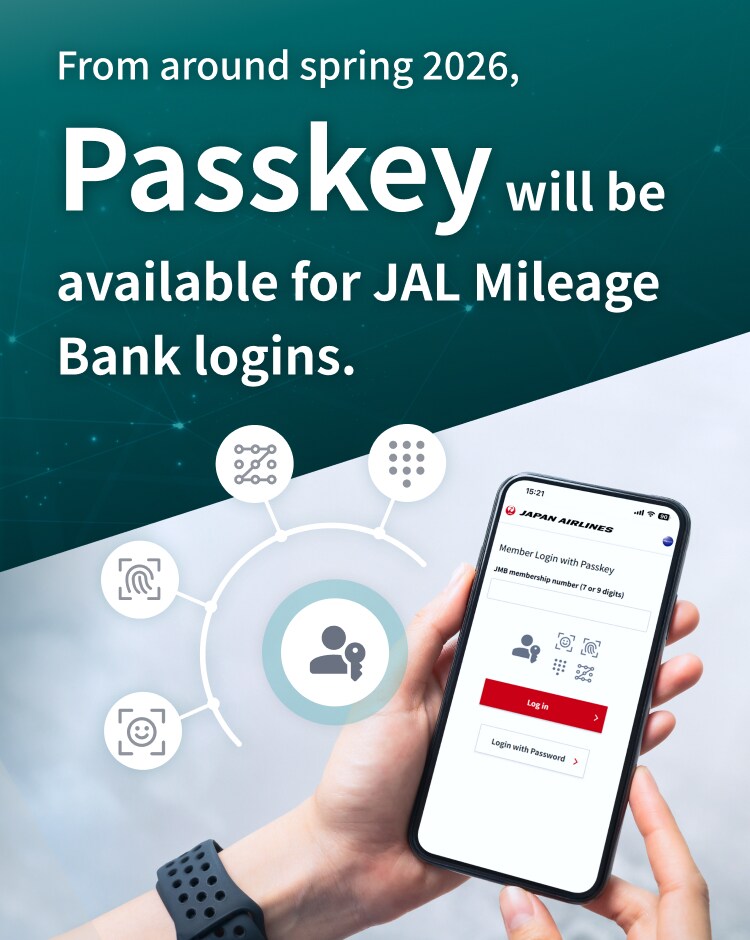
Passkeys provide a safer and more seamless login experience as it eliminates the need for passwords.
They are effective against unauthorized or illegal access as well as phishing scams.
What is a Passkey?
A passkey is an authentication method that is linked to your device or password manager using a combination of fingerprint, facial, or pattern recognitions.
It reduces the risk of unauthorized or illegal logins and phishing scams as there is no need to remember or enter passwords.

- The content in this video includes images for illustration and may not reflect the actual specifications or screens.
Warnings When Using Passkeys
- One-Time Passwords authentication via SMS is required to register a passkey.
* SMS verification is only for JMB members residing in Japan. - Passkeys may not be available due to your device, OS, or browser settings.
Make sure your environment is compatible with passkeys. - Please use a smartphone or computer to create and use passkeys.
* Please check that your device’s screen lock (such as fingerprint, face recognition, PIN) is enabled.
* Enable Bluetooth to sync passkeys between your smartphone and computer.
Prepare Your Device
iPhone Open


Android Open


Windows Open


Mac Open


How to Set Up a Passkey
How to log in with a passkey
STEP 1
Select Login with Passkey on the Member login screen, then click "Log in."

STEP 2
Enter your JMB membership number then click "Log in."

STEP 3
Please authenticate using your device's biometric screen lock when prompted.

STEP 4
Once verified, you will automatically be logged in.

STEP 1
Select Login with Passkey on the Member login screen, then click "Log in."

STEP 2
Enter your JMB membership number then click "Log in."

STEP 3-1
If a passkey is registered on this computer
Please authenticate using biometrics or PIN code following the prompt on your device.

STEP 3-2
If the device calling the password manager is different from the device used to log in.
Scan the displayed 2D barcode with your smartphone and complete the biometric or screen lock authentication.
- If passkey authentication using the 2D barcode does not work with your device’s standard camera app, please try scanning it with Google Lens.

STEP 4
Once verified, you will automatically be logged in.

Passkey Compatibility
Website (PC)
- Windows
Windows 11 (Edge 109 or later / Chrome 109 or later) - MacOS
macOS 13 or later (Safari / Chrome 109 or later)
Website (mobile site)
- iOS
iOS 16 or later (Safari / Chrome 109 or later) - Android
Android 9 or later (Chrome 109 or later)
JAL App / JMB App / JAL Card App
- To be introduced sequentially
- iOS
iOS 16 or later - Android
Android 9 or later
FAQ
What should I do if I don't have a device that supports passkeys, such as face or fingerprint recognition? Open
Is my passkey information shared with JAL? Open
Where can I use passkeys? Open
Please select your language from the buttons below.
言語につきましては、以下ボタンから選択してください。