

Easy and Safe Login with Passkeys!

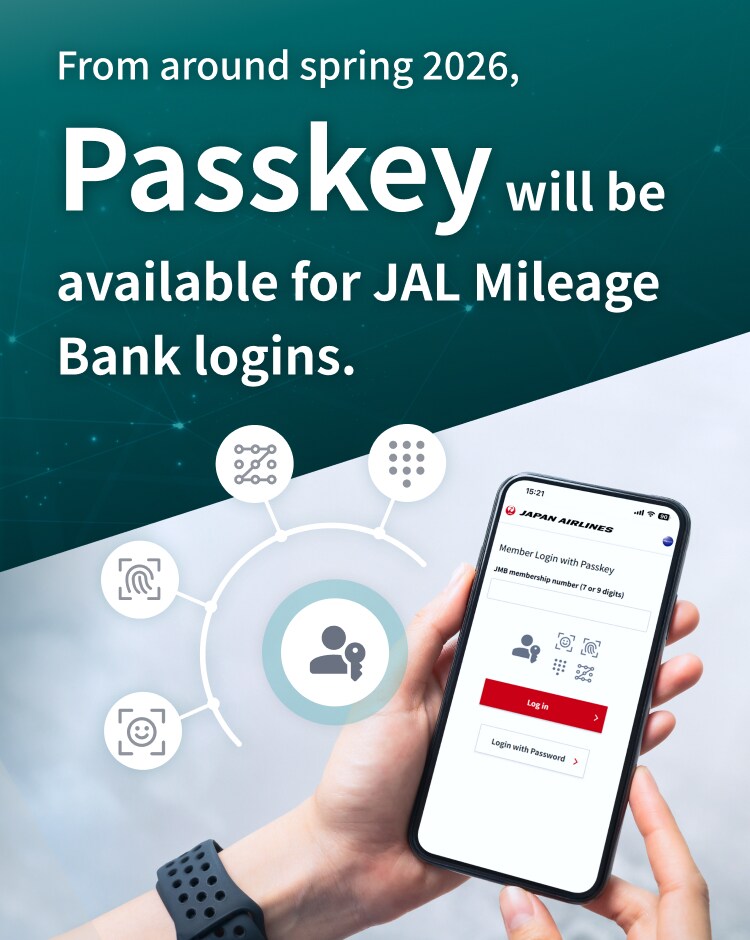
Passkeys provide a safer and more seamless login experience as it eliminates the need for passwords.
They are effective against unauthorized or illegal access as well as phishing scams.
What is a Passkey?
A passkey is an authentication method that is linked to your device or password manager using a combination of fingerprint, facial, or pattern recognitions.
It reduces the risk of unauthorized or illegal logins and phishing scams as there is no need to remember or enter passwords.

- The content in this video includes images for illustration and may not reflect the actual specifications or screens.
Warnings When Using Passkeys
- One-Time Passwords authentication via SMS is required to register a passkey.
* SMS verification is only for JMB members residing in Japan. - Passkeys may not be available due to your device, OS, or browser settings.
Make sure your environment is compatible with passkeys. - Please use a smartphone or computer to create and use passkeys.
* Please check that your device’s screen lock (such as fingerprint, face recognition, PIN) is enabled.
* Enable Bluetooth to sync passkeys between your smartphone and computer.
Prepare Your Device
iPhone Open


Android Open


Windows Open


Mac Open


How to Set Up a Passkey
How to Register a Passkey
- Not available via in-app browsers.
- One-Time Passwords authentication via SMS is required to register a passkey.
STEP 1
After logging in, click "Manage your account," then click "Register / Change / Delete Passkey."

STEP 2
Enter the SMS verification code.

STEP 3
On the Passkey Settings (Register/Delete) screen, click "New registration."

STEP 4
Please authenticate using your device's biometric screen lock when prompted.

STEP 5
Please wait for the confirmation screen to finish setup.

STEP 1
After logging in, click "Manage your account," then click "Register / Change / Delete Passkey."

STEP 2
Enter the SMS verification code.

STEP 3
On the Passkey Settings (Register/Delete) screen, click "New registration."

STEP 4
Please authenticate using biometrics, PIN code, or security key following the prompt on your device.

STEP 5
Please wait for the confirmation screen to finish setup.

Passkey Compatibility
Website (PC)
- Windows
Windows 11 (Edge 109 or later / Chrome 109 or later) - MacOS
macOS 13 or later (Safari / Chrome 109 or later)
Website (mobile site)
- iOS
iOS 16 or later (Safari / Chrome 109 or later) - Android
Android 9 or later (Chrome 109 or later)
JAL App / JMB App / JAL Card App
- To be introduced sequentially
- iOS
iOS 16 or later - Android
Android 9 or later
FAQ
What should I do if I don't have a device that supports passkeys, such as face or fingerprint recognition? Open
Is my passkey information shared with JAL? Open
Where can I use passkeys? Open
Please select your language from the buttons below.
言語につきましては、以下ボタンから選択してください。